11 LAB I: Introduction to Jamovi
When we have finished this Lab, we should be able to:
11.1 Why Jamovi?
Jamovi is a new fee open “3rd generation” statistical software that is built on top of the programming language R (Figure 11.1). Designed from the ground up to be easy to use, Jamovi is a compelling alternative to costly statistical products such as SPSS and SAS.
11.2 Downloading and installing Jamovi
Jamovi is available for Windows (64-bit), macOS, Linux and ChromeOS. Installation on desktop is quite straight-forward. Just go to the Jamovi download page https://www.jamovi.org/download.html, and download the latest version (current release) for your operating system.
11.3 Navigating Jamovi
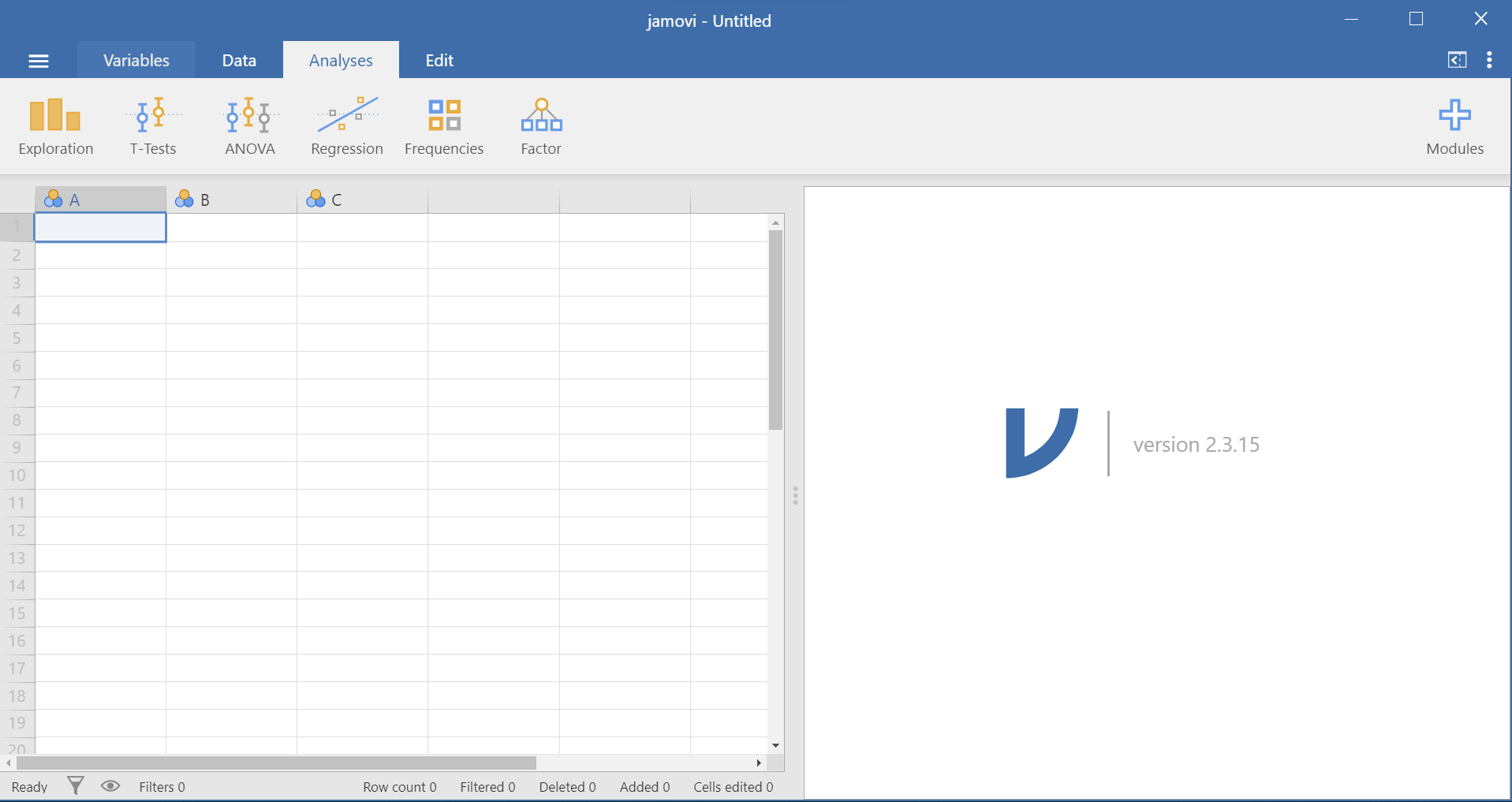
When jamovi first opens, we will see a screen something like in Figure 11.2.
To the left is the spreadsheet view, and to the right is where the results of statistical tests appear. Down the middle is a bar separating these two regions, and this can be dragged to the left or the right to change their sizes.
Let’s take a quick look at the Jamovi Main Menu, referred to hereafter as the Menu, as shown in Figure 11.3. This Menu is displayed at the very top of the Jamovi screen:

There are six tabs in the Menu (from left to right): File (a layer with three horizontal levels \(\equiv\)), Variables, Data, Analyses, Edit, and Settings (the three dots \(\vdots\) at the top right of the window) tabs. A toolbar appears whenever we click on a Menu tab (Table 11.1).
| Menu tab | Toolbar |
|---|---|
|
 |
|
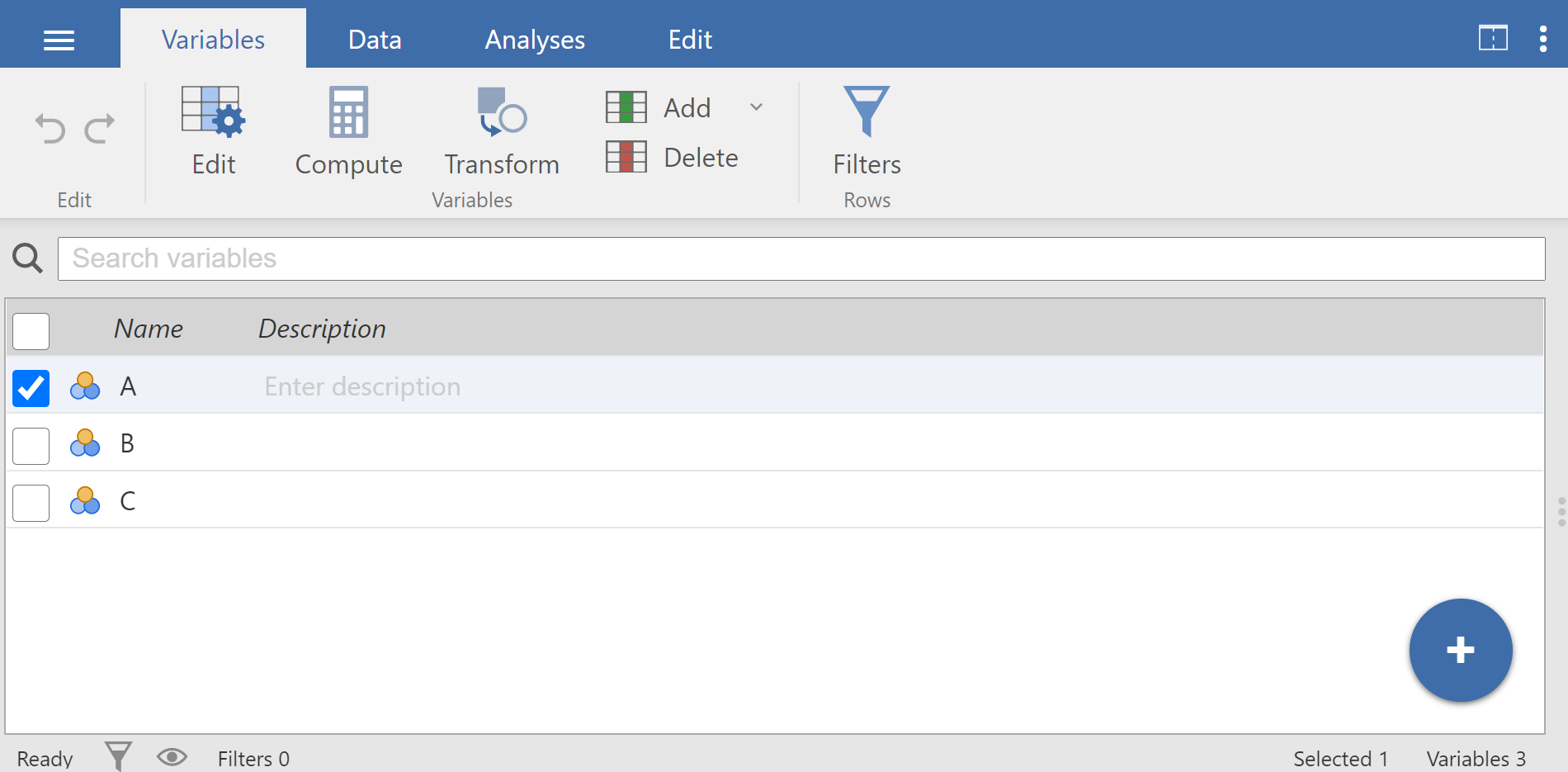
This view allows us to easily navigate our variables and do the following:
|
|
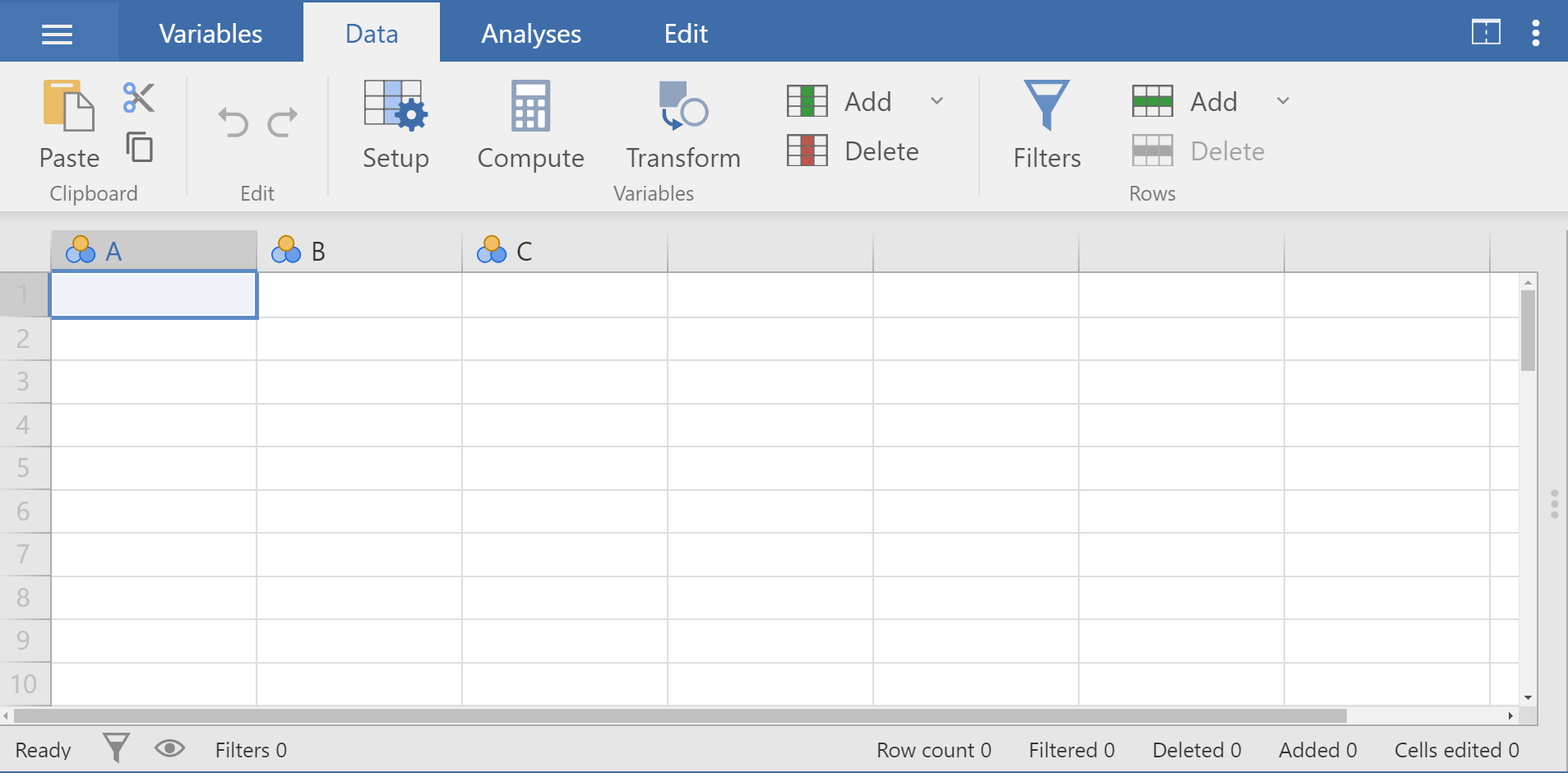
Specifically, this tab allows us to do the following:
|
|
We will spend most of our time in the Analyses Tab. The following six modules are pre-installed:
For example, if we want to perform regression analysis, we simply click the ’’Regression” button. All other modules need to be installed using the Modules button (Plus button) in your top-right |
|
We can add extra information to our results using the buttons that are very similar to what we would find in Word (though there are fewer options). |
|
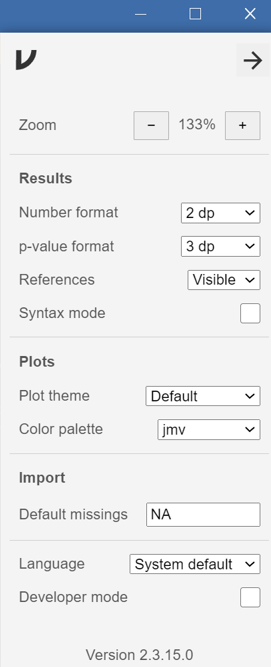
We can apply our preferences for a number of settings such as:
|



11.4 Types of Variables in Jamovi
Data variables can be one of four measure types:
 Nominal: This type is for nominal categorical variables.
 Ordinal: This type is for ordinal categorical variables.
 Continuous : this type is for variables with numeric values which are considered to be of Interval or Ratio scales.
 ID: This will usally be our first column. This can be text or numbers, but it should be unique to each row.
and one of three data types:
Integer: These are full numbers e.g. 1, 2, 3, ... 100, etc. - Integers can be used for all three measure types . When used for Nominal/Ordinal data numbers will represent labels e.g. male=1; female=2.
Decimal: These are numbers with decimal points. e.g. 1.3, 5.6, 7.8, etc. - This will usually only be used for continuous data.
Text: This can be used for ordinal and nominal data.
The measure types are designated by the symbol in the header of the variable’s column. Note that some combinations of data-type and measure-type don’t make sense, and Jamovi won’t let us choose these.
| Measure | |||
|---|---|---|---|
| Data | Nominal | Ordinal | Continuous |
| Integer | \({\checkmark}\) | \({\checkmark}\) | \({\checkmark}\) |
| Decimal | \({\checkmark}\) | ||
| Text | \({\checkmark}\) | \({\checkmark}\) |
11.5 Importing data
The dataset
It is possible to simply begin typing values into the Jamovi spreadsheet as we would with any other spreadsheet software. Alternatively, existing data sets in a range of formats (OMV, Excel, CSV, SPSS, R data, Stata, SAS) can be opened in Jamovi. We will use the dataset named arrhythmia as an example (Figure 11.4).
The meta-data (data about the data) for this dataset are as following:
- age: age (yrs)
- sex: sex (0=male, 1=female)
- height: height (cm)
- weight: weight (kg)
- QRS: mean duration of QRS (ms)
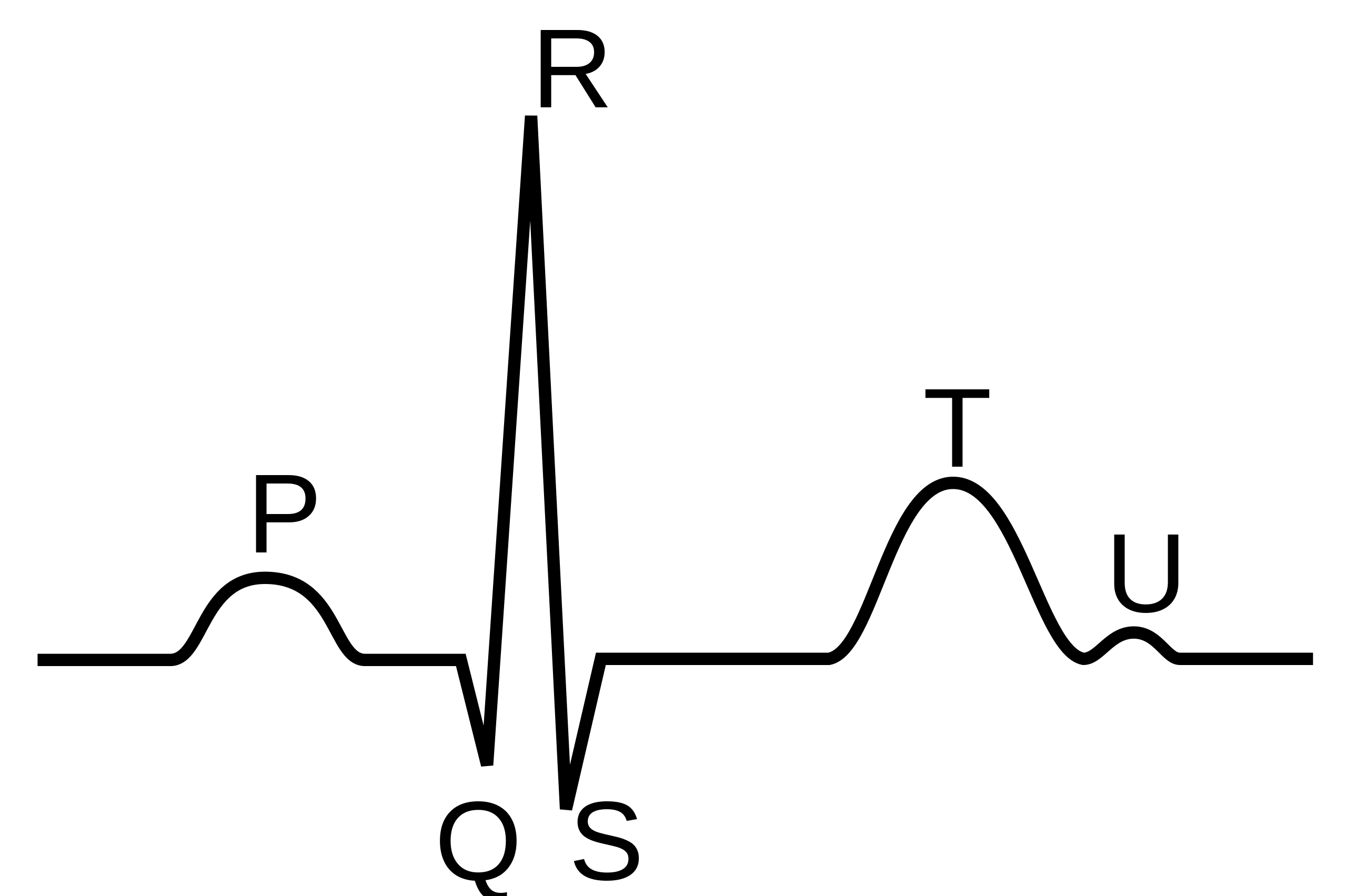
- heart_rate: heart rate (beats/min)
Opening the file
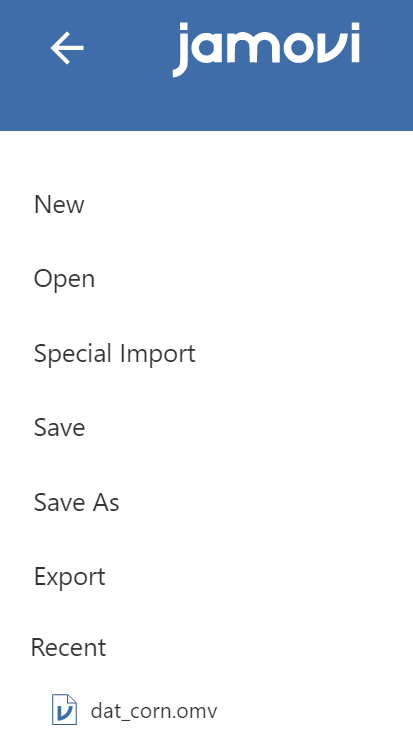
To open this Jamovi file, click on the File tab  at the top left hand corner (just left of the Variables tab) (Figure 11.5).

This will open the menu shown in Figure 11.6. Select ‘Open’ and then ‘This PC’, and choose the excel file ‘arrhythmia’ from the files listed on ‘Browse’ which are stored on our computer folders:
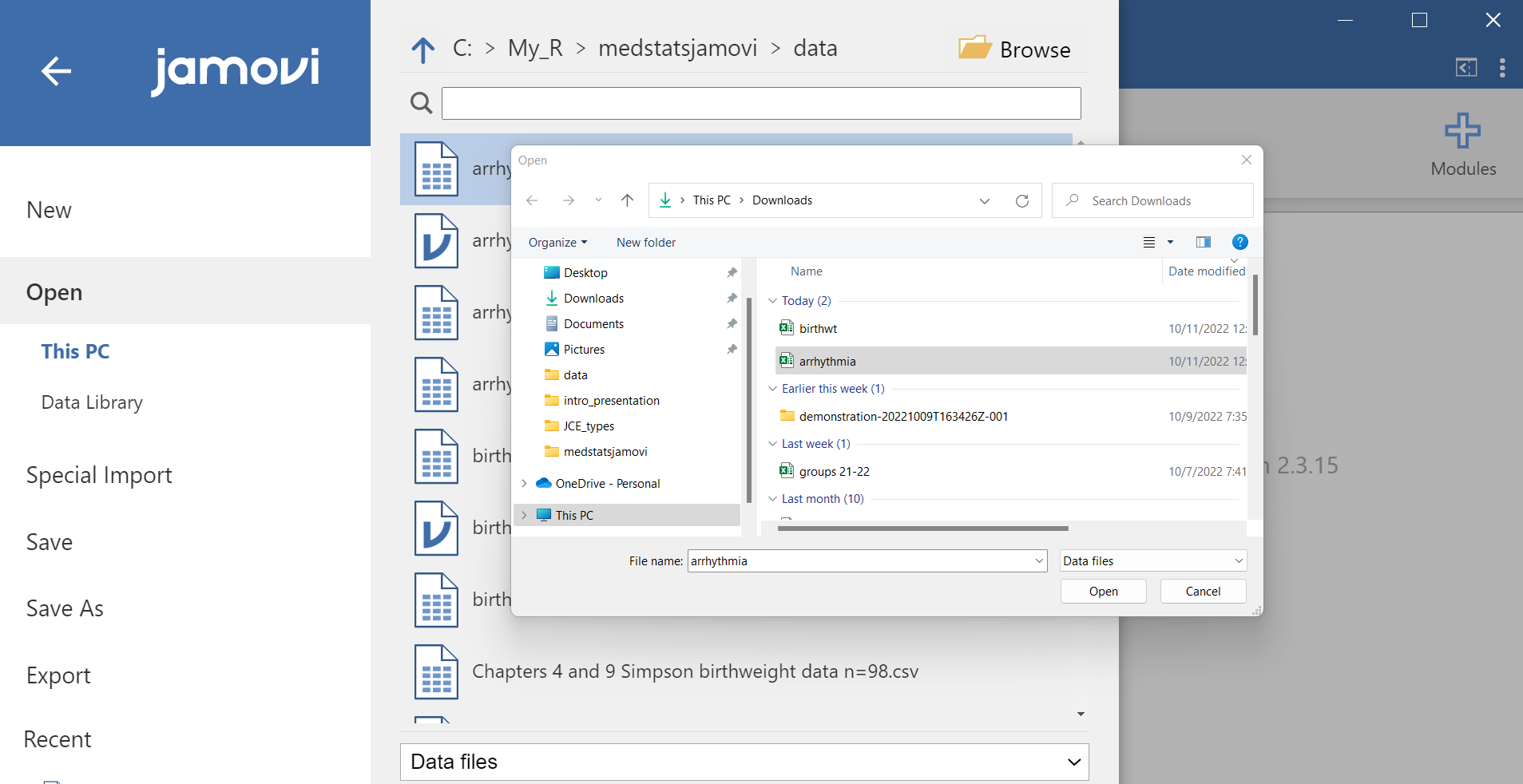
The flowchart of the process is:
flowchart LR
  A(File tab) -.-> B(Open) -.-> C(This PC) -.-> D(Browse) -.-> E(Open \n 'arrhythmia')
We should see data now in the Spreadsheet view (Figure 11.7).
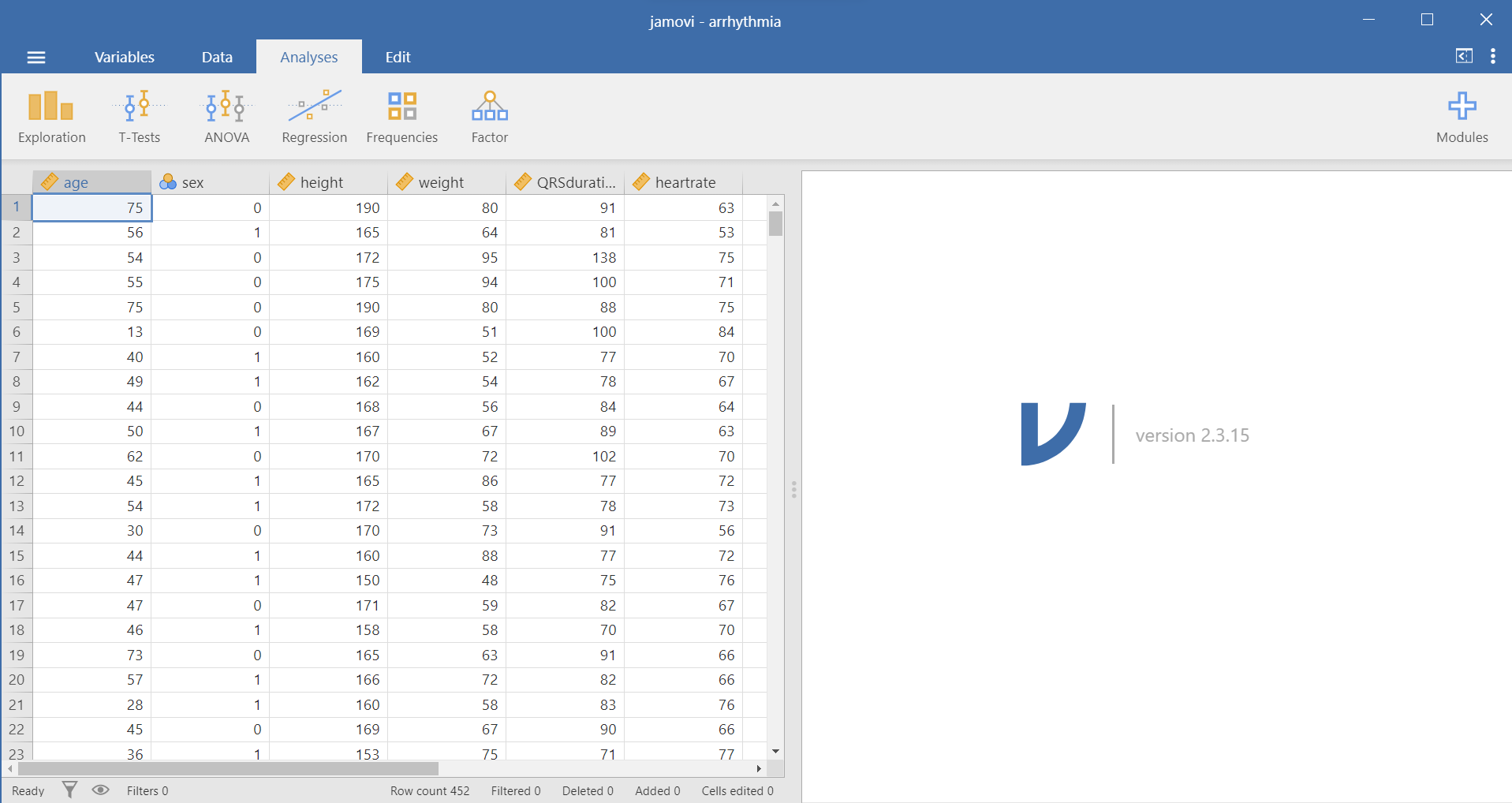
As we can see this is a data set with 452 observations and 6 variables. The categorical variable sex is coded as 0 for males and 1 for females, and it is stored as nominal . All other variables are continuous .
11.6 Transforming data
Adding labels to codes
We can add labels to numerically coded values of categorical variables. Double-click on the variable name sex. We will get an extra menu opened at the top of the Jamovi screen Figure 11.8:
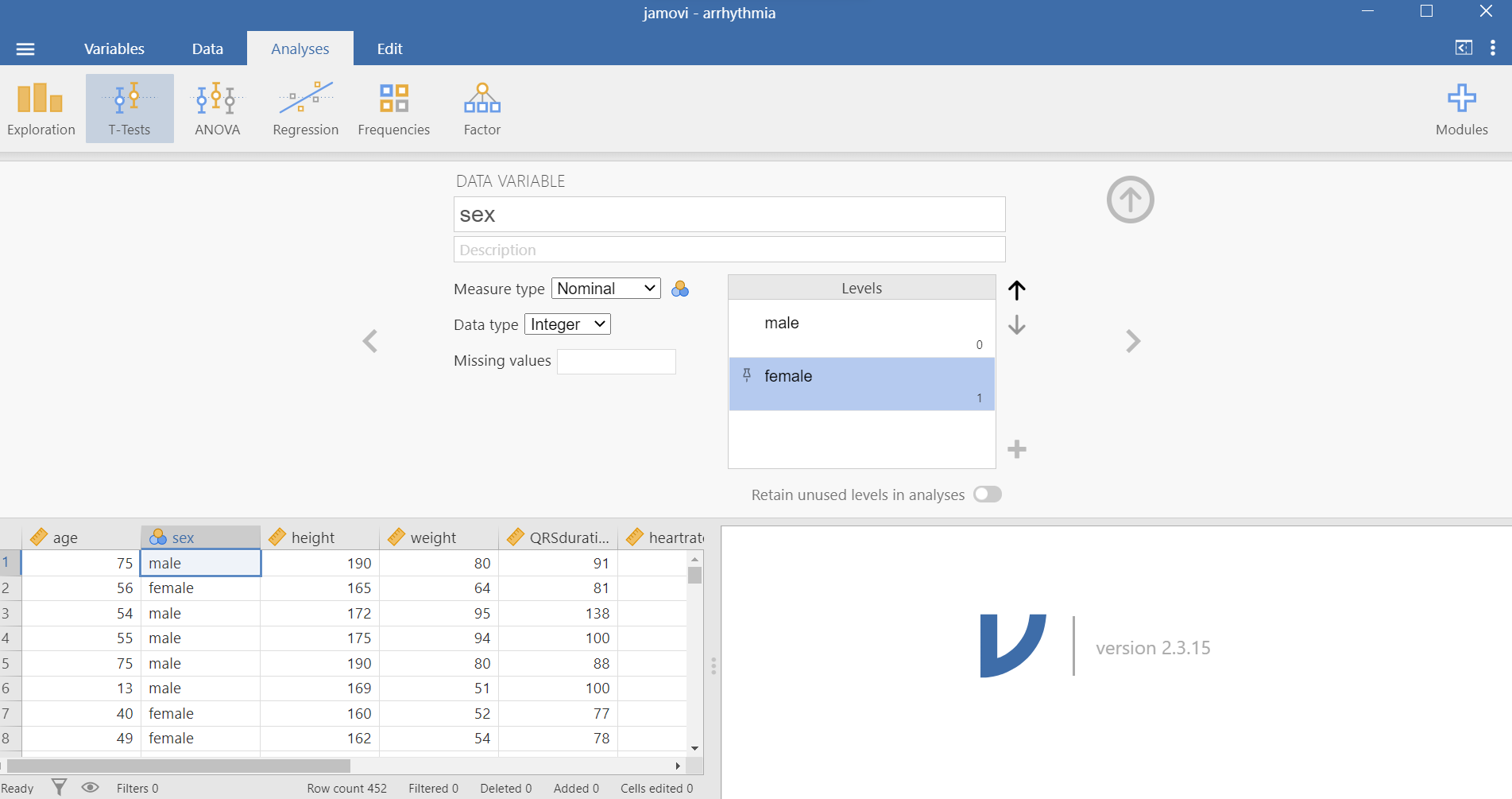
At this extra menu there is the Levels setup. We can set the labels that should appear for each level of that category. Click on the number ‘0’ in the Levels box to enter the label for this level. Change this from a ‘0’ to the word ‘male’. Click on the number ‘1’ and change it to ‘female’.
Notice how the numbers 0 and 1 move to the lower right under the text we’re typing, so we can still see which label refers to which number. Click anywhere outside the labels box to save these labels.
We close the variable settings by pressing the arrow in the top-right corner  .
.
Filtering data
Next, we select the Filters button  from the Data tab. This opens the “Row FILTERS” view at the top of the Jamovi screen where we can add a filter called “Filter 1” (Figure 11.9). Let’s say that we want to study only the adults from the participants.
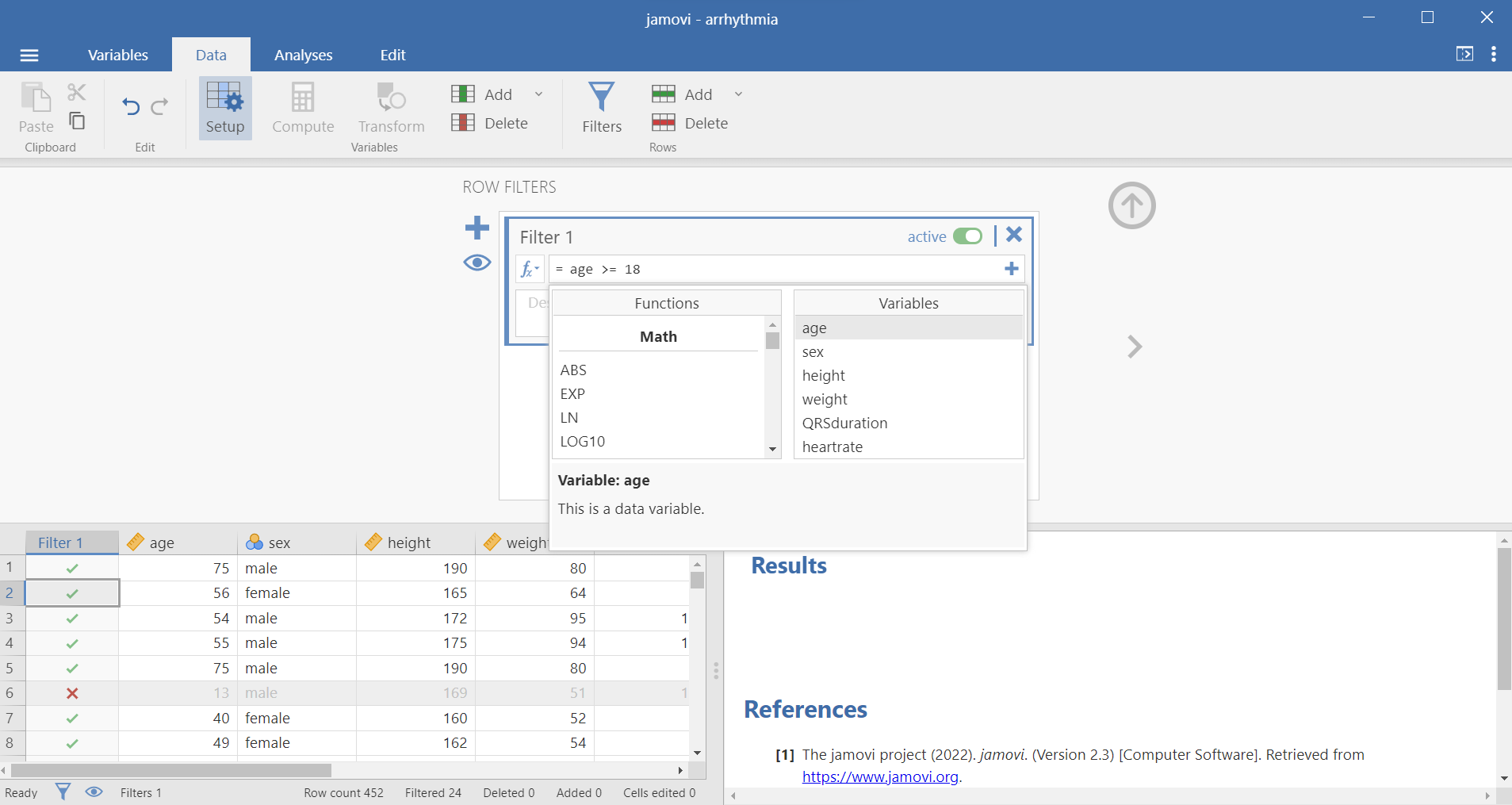
In order to access functions, press the  icon in the filter settings and from “VARIABLES” double-click on
 age (or we just type the variable name but if the variable has a space, we must use '..' around the variable name). Then type the condition age >= 18 and press ENTER from the keyboard in the formula box.
Relational (or comparison) operators in Jamovi
| symbol | read as |
|---|---|
| < | less than |
| > | greater than |
| == | equal to |
| <= | less than or equal to |
| >= | greater than or equal to |
| != | not equal to |
Notice that a column named Filter 1 has been added to the Spreadsheet view. Cells that meet the condition age >= 18 are checked with a green tick  , while the rest have a red x symbol
  . Lines with an
 X are grayed out indicating that these observations are now outside of the current dataset.
There is also a switch where we can activate  or inactivate
  the filter (note that an inactivate filter will remain visible and can be toggled to active at any time).
It is also possible to hide all filter columns by clicking on the eye symbol  of the filters. In this case, all filters and the filtered data will remain active but will be invisible.
Finally, if we want to delete the filter permanently, click on the cross of the filter.
But we can do more complicated filters than this! Let’s say that we’re interested in the adult females. In fact we can specify this in three ways:
a) by using the and operator in “Filter 1” which means that both conditions (adults and females) in the expression must be true at the same time. Therefore, we type the expression age >= 18 and sex == 'female' (Figure 11.10):
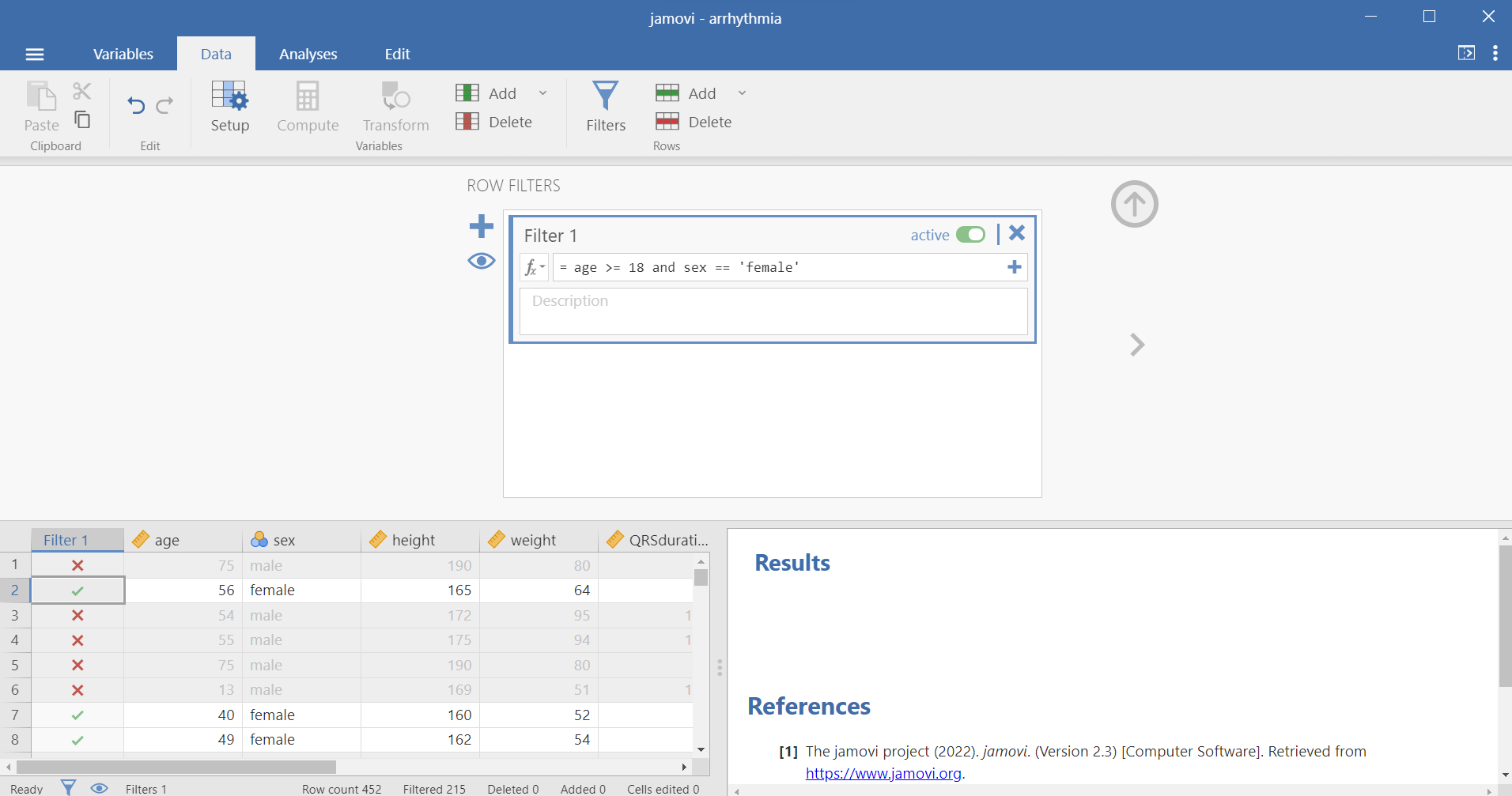
and operator in one expression.Note that in the above expression we can also use double quotes around the "female" (i.e. age >= 18 and sex == "female") or even the coded value (i.e. age >= 18 and sex == 1).
b) by adding the second condition (i.e. sex == "female") as another expression to “Filter 1” (by clicking the small + beside the first expression) (Figure 11.11):
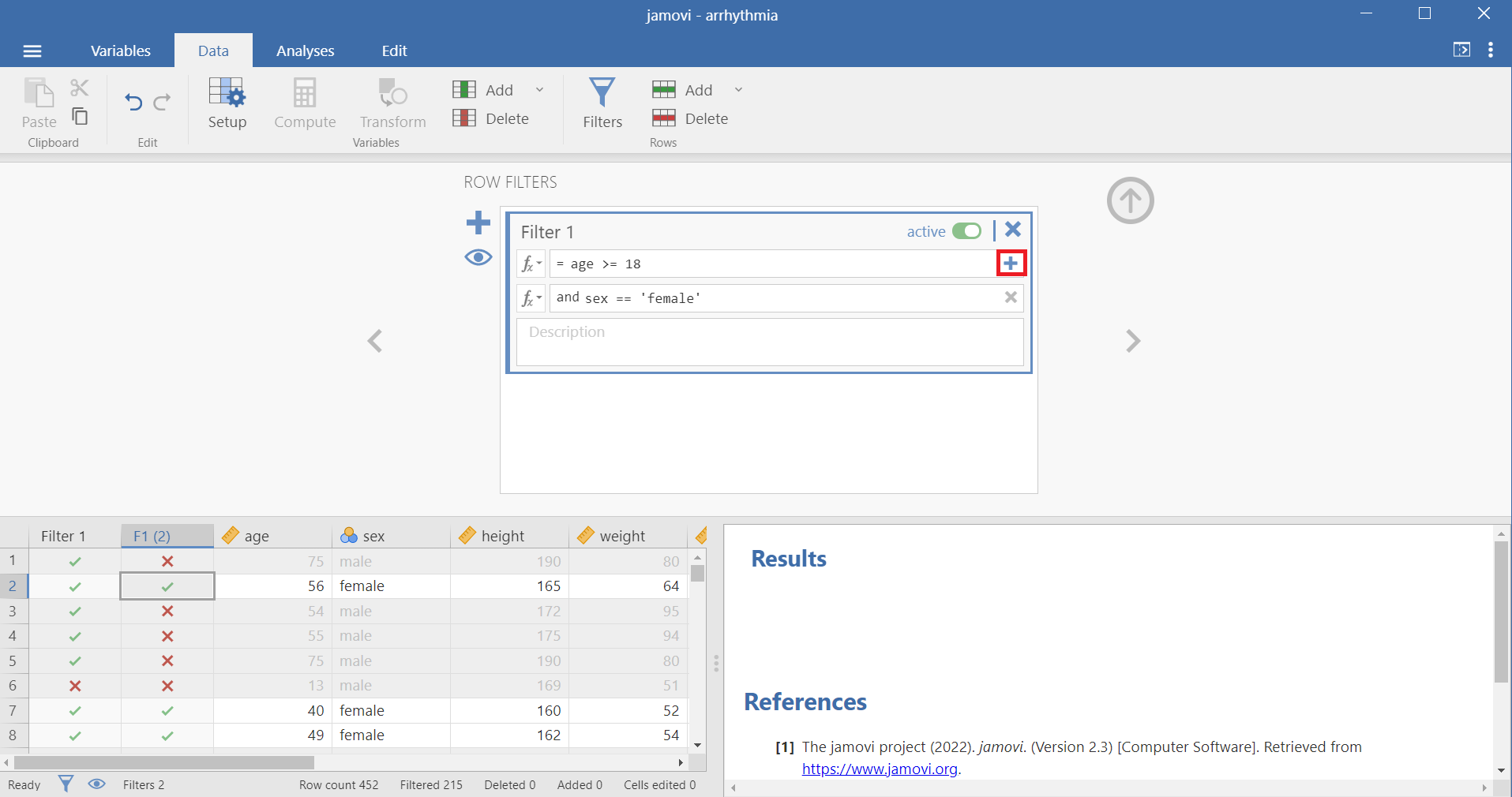
This additional expression comes to be represented with its own column F1(2) (Figure 11.11), and by looking at the ticks and crosses, we can see which expression is responsible for excluding each row.
c) adding a new “Filter 2” (by selecting the large + to the left of the filters dialog box) (Figure 11.12). In this case, we can activate or inactivate the filters separately.
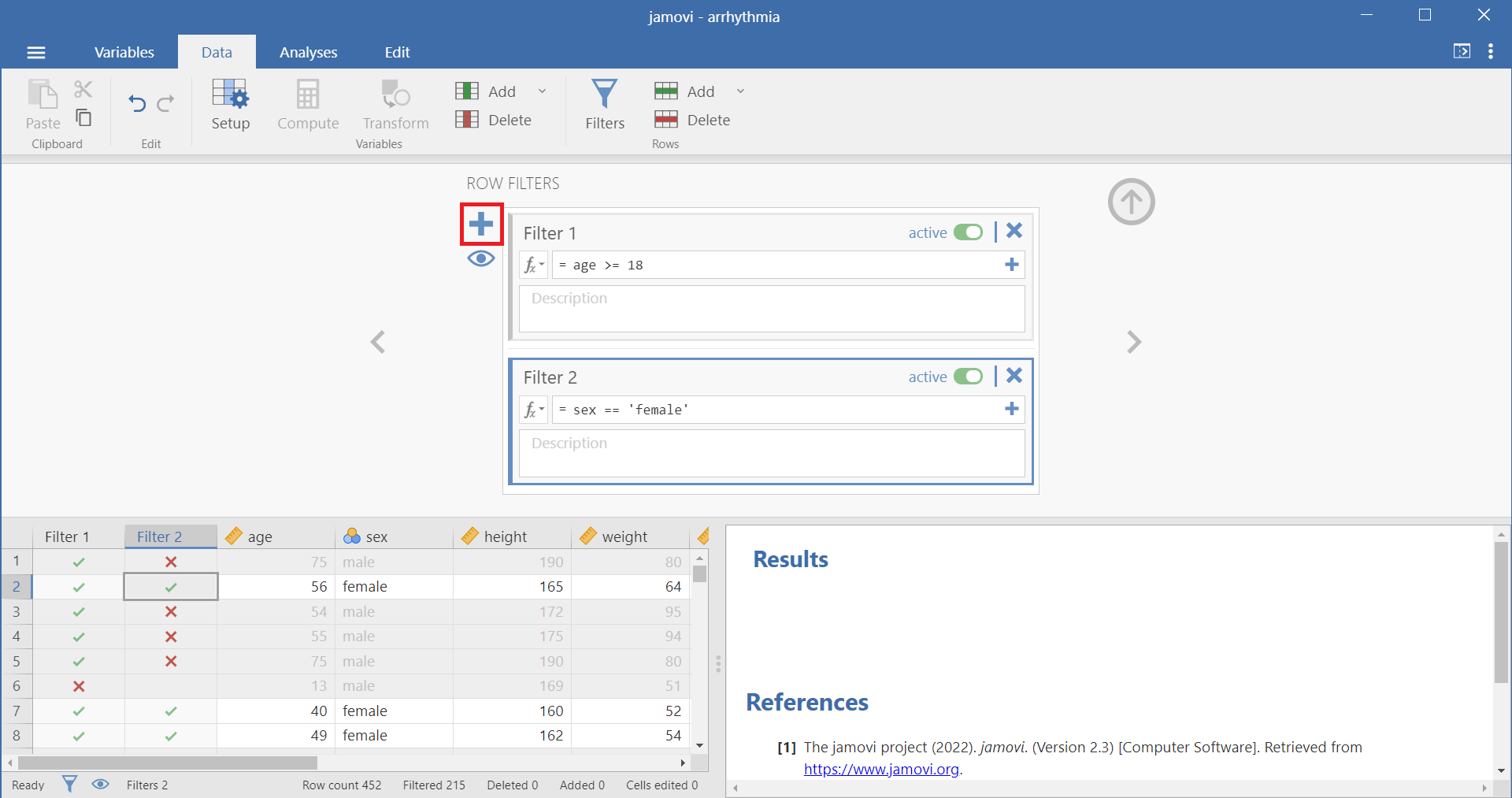
We close the filter settings by pressing the arrow in the top-right corner .
Important
Filters in Jamovi exclude the rows for which the expression is not true. When filters are active, all results will be based on the filtered data. If we want to see unfiltered results we will either need to delete the filter or toggle it to inactive.
Computing a new variable
Sometimes we may need to compute a new variable based on existing information (from other variables) in our data. For example, we may want to compute the body mass index (BMI), from weight (Kg) and height (m) using the formula:
\[BMI = weight/height^2 \tag{11.1}\]
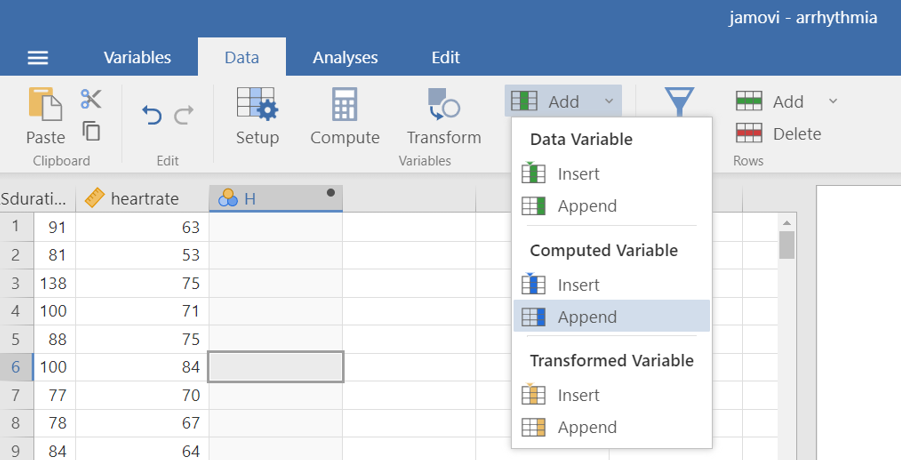
Adding computed variables to a Jamovi spreadsheet is straightforward. Click on Add button available on the Data tab and then select Append from the Computed Variable list. (Alternatively, select the Compute button  ). An empty column has been created at the end of our dataset (Figure 11.13). The black dot symbol in the right of the column header indicates that this is a computed variable.
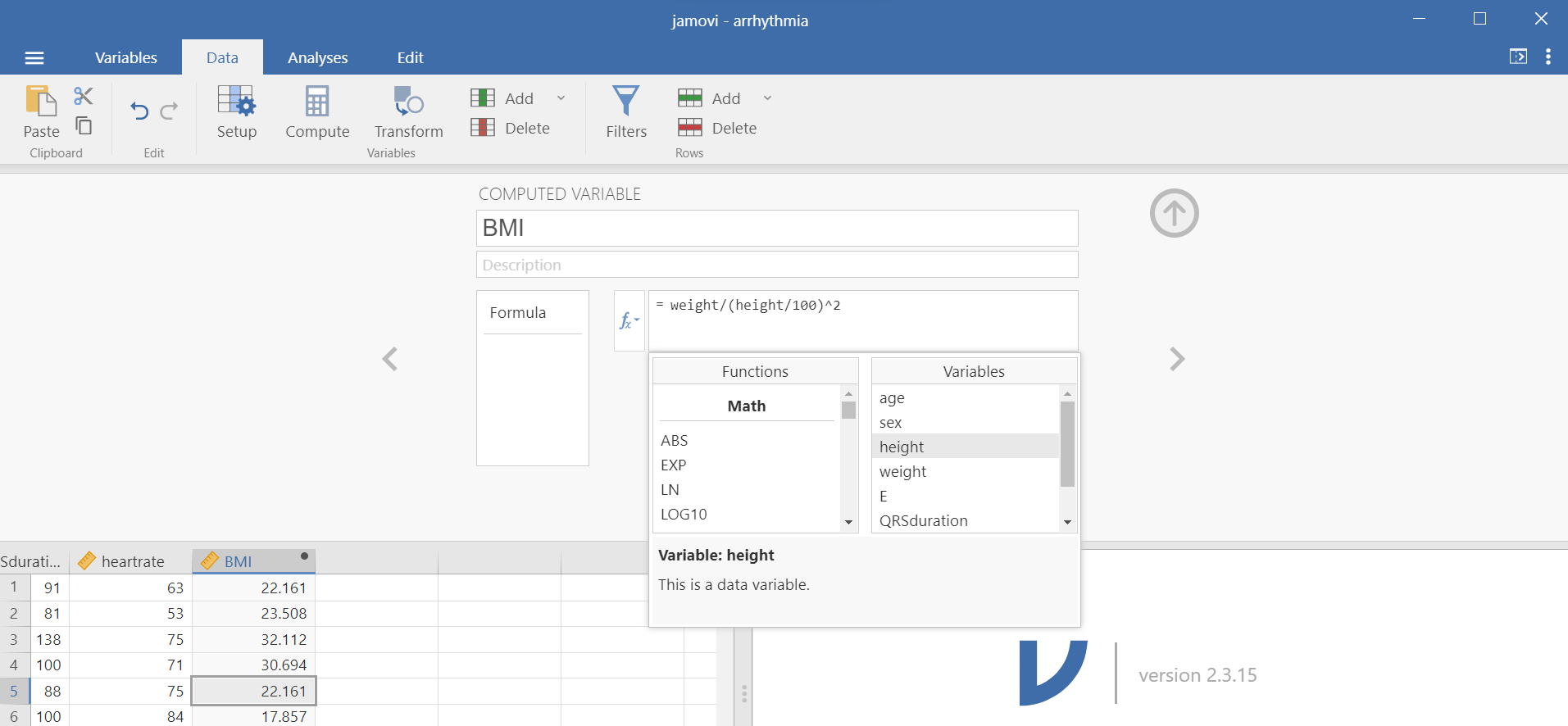
To set up the computed variable, either double-click on the column header, or select Setup button  ) from the Data tab. This opens the “COMPUTED VARIABLE” view where we can set the name of the computed variable as
 BMI and specify the Equation 11.1 in the Formula box (note that we must divide the height by 100 and use the exponentiation operator ^ or **) (Figure 11.14):
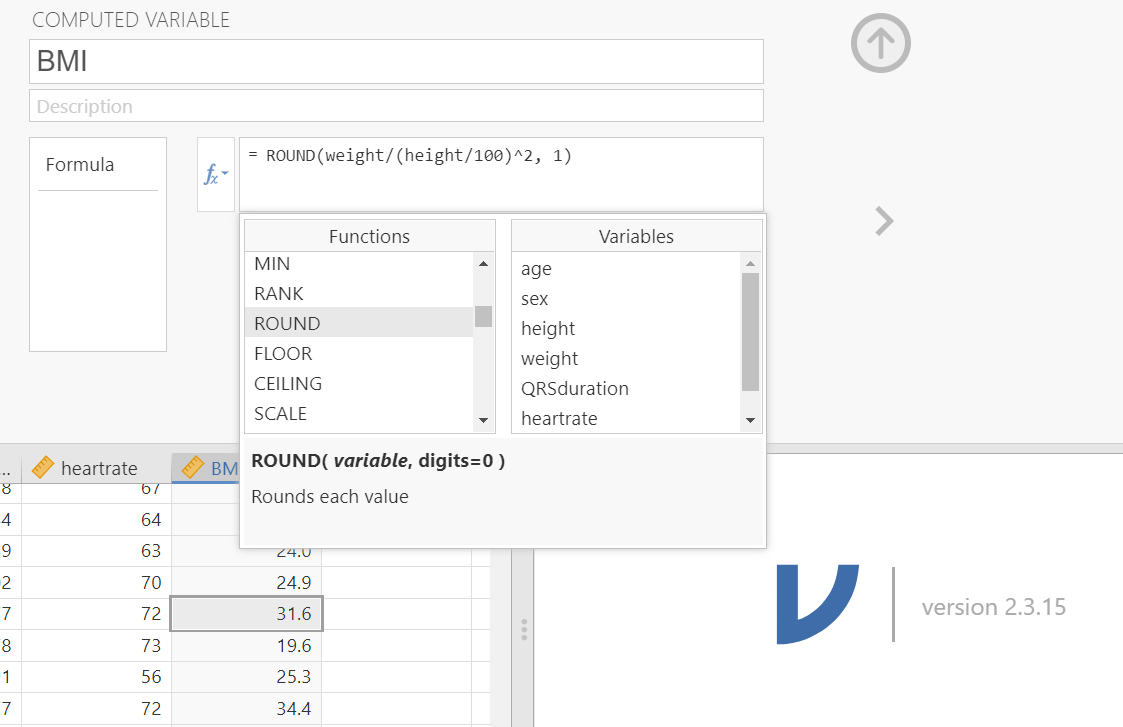
Finally, we can round the variable BMI to one decimal place using the ROUND() function:
Transforming a variable
Sometimes it can be useful to convert a quantitative variable into a qualitative variable with levels. For example, the BMI is often categorized as follows:
less than 18.5 underweight
18.5 to <25.0 healthy weight
25.0 to <30.0 overweight
30.0 or higher obesity
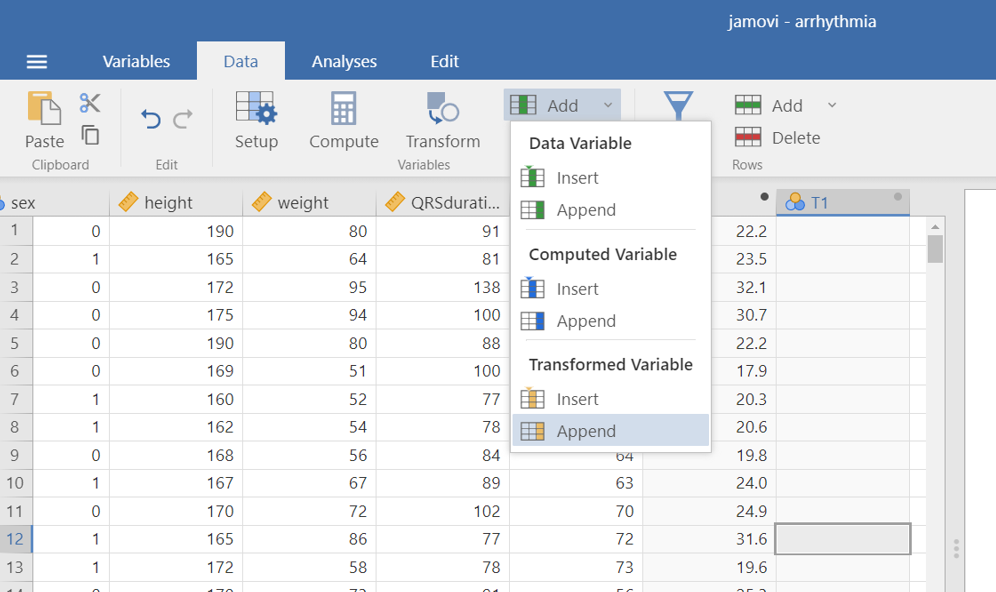
Click on Add button available on the Data tab and select Append from the Transformed Variable list. (Alternatively, select the Transform button  ). An empty column has been created at the end of our dataset (Figure 11.16).
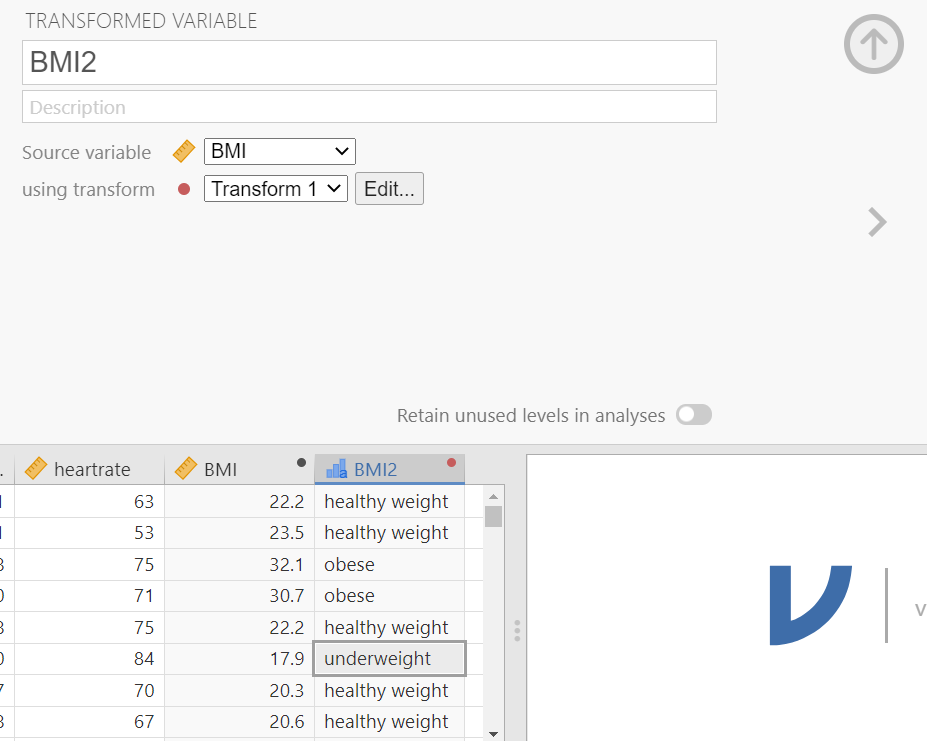
To set up the transformed variable, either double-click on the column header, or select Setup from the Data tab. This opens the “TRANSFORMED VARIABLE” view where we can set the name of the transformed variable such as BMI2 and create the transformation by selecting the source variable, here the BMI, in the Source Variable field, and creating a new transformation using transform field (Figure 11.17).
flowchart LR
  A(Source variable) -.-> B[[BMI]]
  C(using transform) -.-> D[[Create New Transform...]]
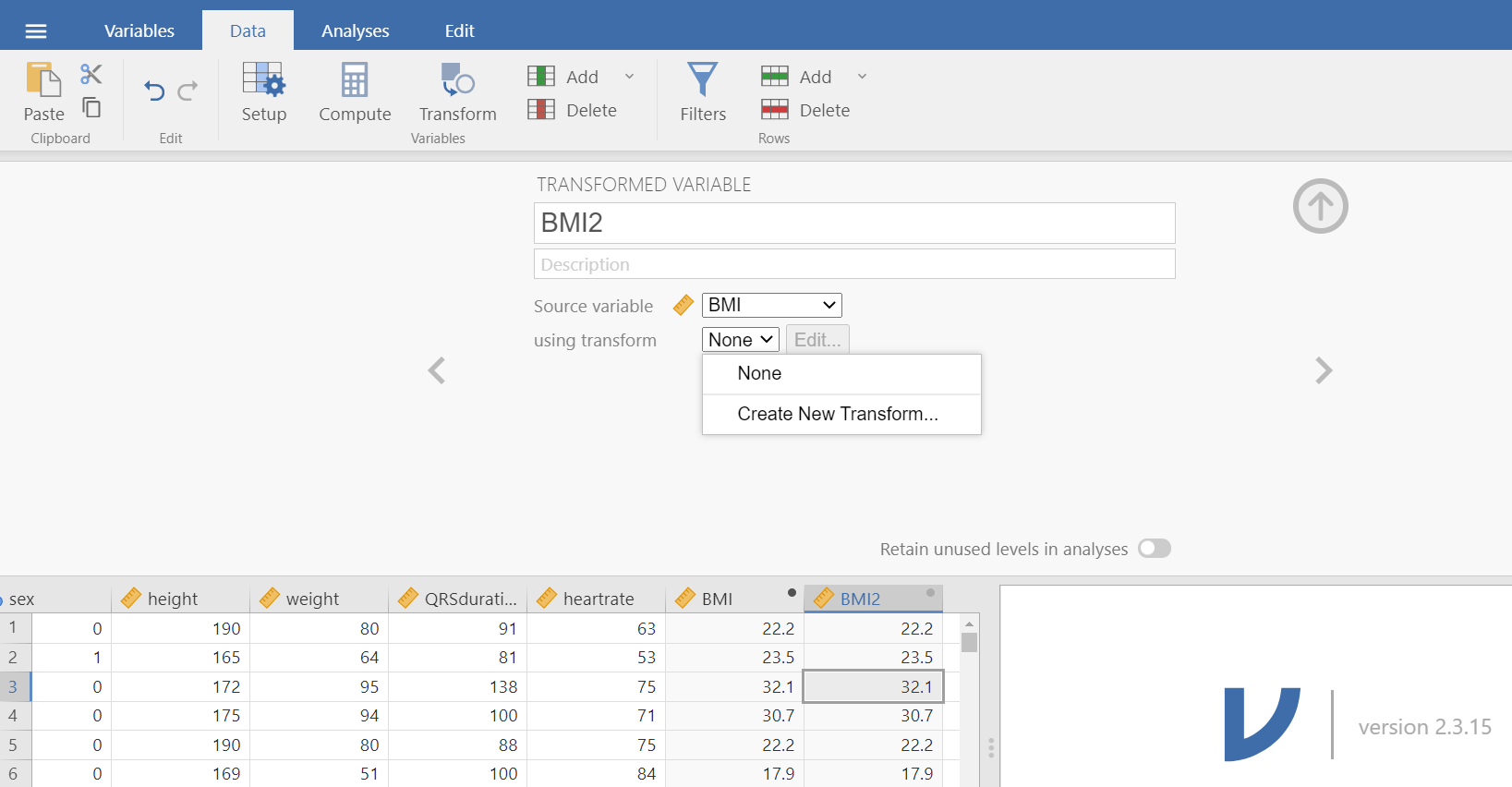
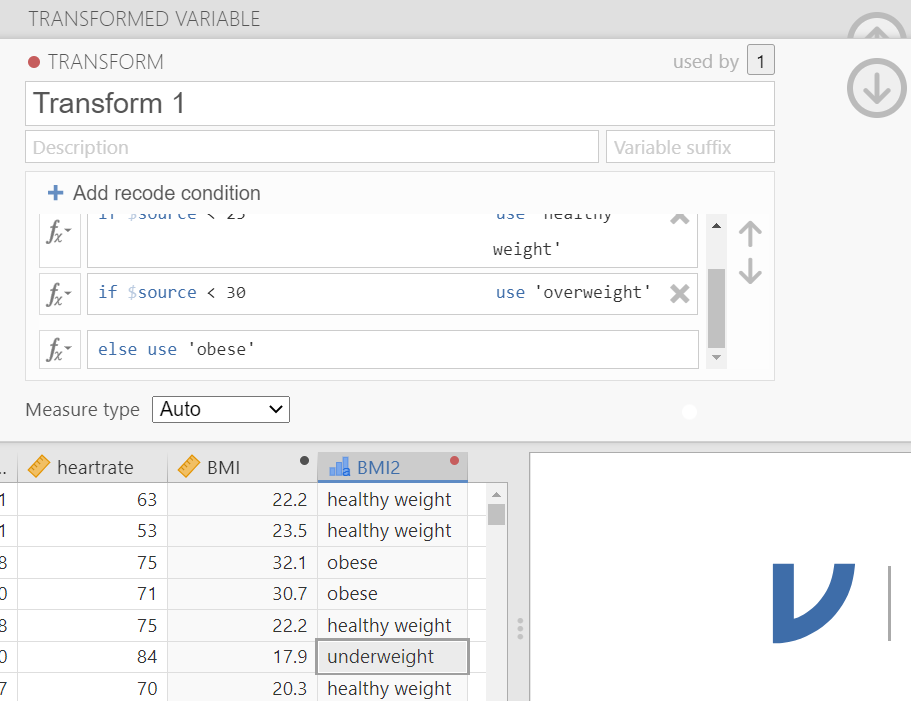
This opens the “TRANSFORM” view where Jamovi gives each transformation a name (e.g., Transform 1; if we want we can change it). This allows us to use it again later on other variables if we wish. We can also add a description (Figure 11.18).
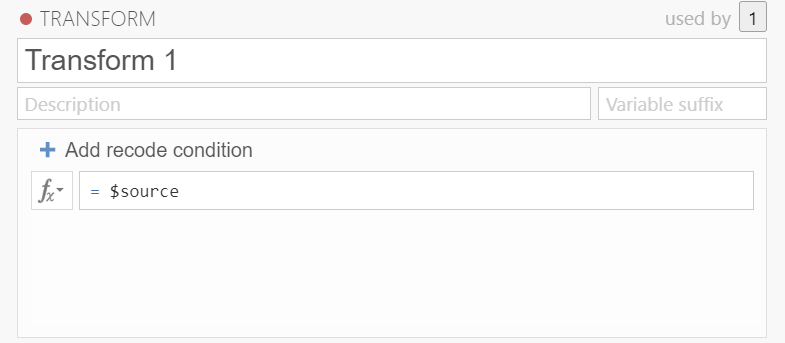
Now we need to add conditions. Jamovi uses simple if ... else statements and executes each statement starting from the top. So let’s start!
First, select + Add recode condition. Second, we need to fill the boxes with the information as follows (Figure 11.19):
- The
$sourceis the variable we want to transform (hereBMI)- don’t change this. - Select the appropriate comparison operator (here
<) - In the next box, we will put the
BMIvalue we want as the cut off point. - After the use, add our new label (here
'underweight'). If we are using text we must enclose it in'...'
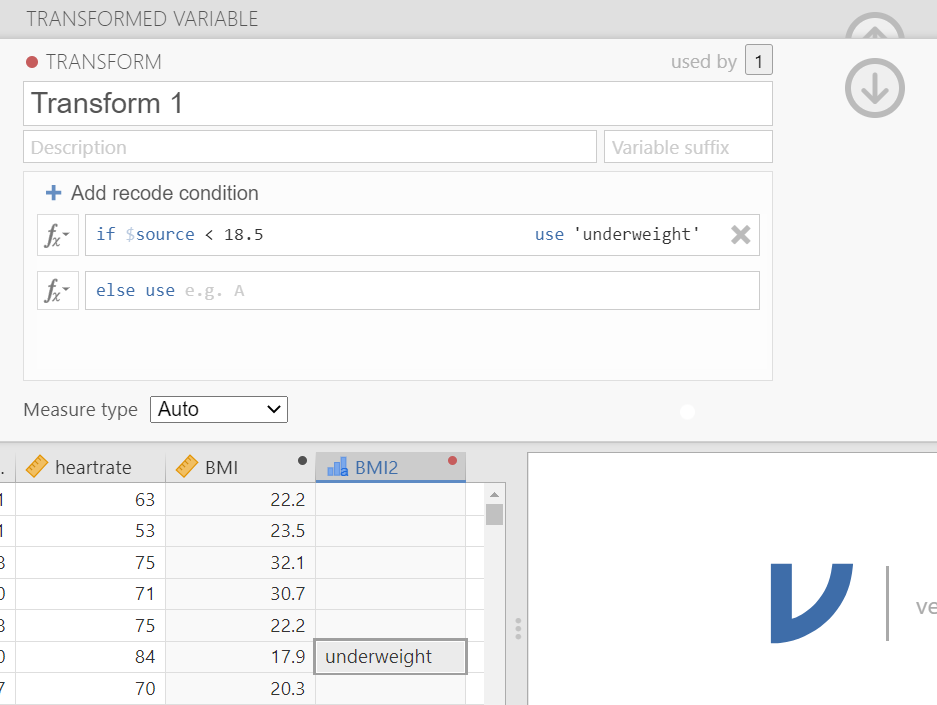
We can add as many conditions as we want by selecting + Add recode condition. This will add a new if $source line into the box. Remember they will be executed in order.
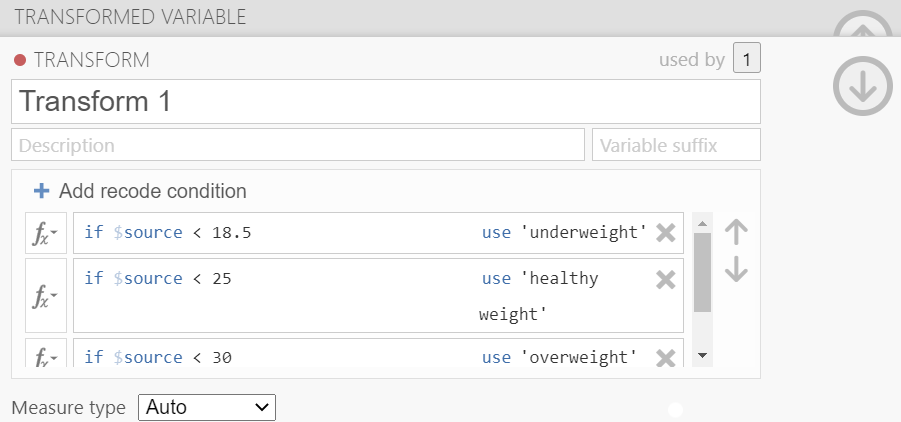
Finally, after the else use box just add the label for the data that does not meet the above conditions (here 'obese').
Editing the transformed variable
The red dot symbol in the right of the column header indicates that this is a transformed variable. Additionally, we can edit existing transformations by selecting Edit… (Figure 11.22).